
Guides
How to use Mobilio
The everyday jobs, step by step, as they look on screen. Open the live demo alongside and try each one on sample data, no login.
Find your way around
Your first day, or any time you're not sure where something lives.
- 1
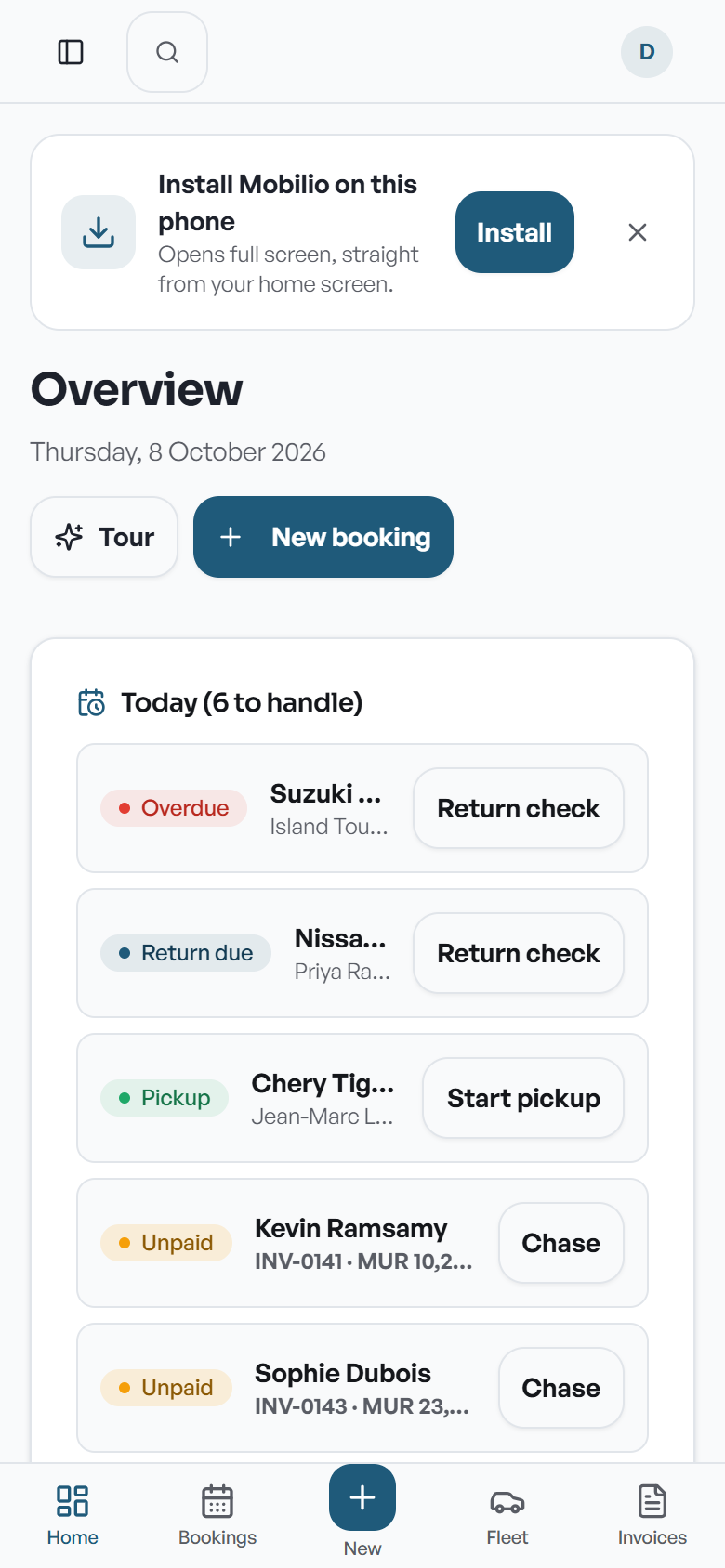
Start with the Today list on the dashboard
Today's pickups, returns due, overdue cars and unpaid invoices, each with a button for the next step.
- 2
Use the sidebar for everything else
Vehicles, Clients, Bookings, Invoices, Expenses, Reports and Settings, grouped by job.
- 3
Press Ctrl+K (⌘K on a Mac) to search
Type a name to jump straight to a client, vehicle or booking. Or tap “Search…” at the top.
- 4
On your phone, use the bottom bar
Home, Bookings, New, Fleet and Invoices sit right under your thumb.
The dashboard tells you what needs doing today, so nothing relies on memory.
Filmed in the live demo, a simplified version of Mobilio. Your app has more options.
Add a vehicle
When a new car joins your fleet.
- 1
Go to Vehicles and tap “Add vehicle”
- 2
Fill in make and model, plate and daily rate
Category, current mileage and status are needed too.
- 3
Add the insurance expiry and service interval
Mobilio uses these to warn you before insurance runs out or a service is due.
- 4
Save with “Add vehicle”
- 5
Track road tax and fitness in “Documents & compliance”
On the vehicle's page, add each document with its expiry date. When you renew, just change the date there.
Insurance, road tax and fitness expiries show on your dashboard 30 days before they lapse.
Filmed in the live demo, a simplified version of Mobilio. Your app has more options.
Add a client
A new customer books, or you want a regular on file.
- 1
Go to Clients and tap “Add client”
- 2
Enter their name and phone
Add the ID number, driving licence number and licence expiry while you have them.
- 3
Save with “Add client”
- 4
Upload their ID and licence in the Documents tab
ID front and back, driving licence and proof of address, as photos or PDFs.
- 5
Add tags to group clients your way
For example VIP, corporate or repeat.
- 6
Had a bad experience? Tap “Flag: do not rent”
Flagged clients can't be booked until you remove the flag.
Flag a problem renter once and nobody on the desk can book them again by mistake.
Filmed in the live demo, a simplified version of Mobilio. Your app has more options.
Create a booking
A customer calls, walks in or messages you for a car.
- 1
Tap “New booking” and pick the client
Choose an existing client or add a new one on the spot. Renting to a company? Change the booking category.
- 2
Choose the car and the dates
Dates start at today to tomorrow. Cars already out on those dates are marked “Booked these dates” and can't be picked.
- 3
Check the booking summary
The total in MUR updates as you change the dates or the daily rate.
- 4
Tap “Create booking”
A proforma invoice is made with it, and emailed to the client if they have an email and the box is ticked.
A car that's already out on those dates can't be booked twice.
Filmed in the live demo, a simplified version of Mobilio. Your app has more options.
Hand over a car
The customer is at the counter, ready to collect the car.
- 1
Tap “Start pickup” on the booking
It's also next to the booking in the Today list on your dashboard.
- 2
Photograph all 11 shots
Front, rear, both sides, four corners, odometer, fuel gauge and interior. Add extra damage photos with a note.
- 3
Enter the odometer reading and fuel level
- 4
Hand the customer your phone to sign
They type their full name and sign on screen.
- 5
Tap “Save pickup inspection”
The booking goes active and a signed condition report PDF is saved with the booking.
If a customer disputes a scratch, you have the photos and their signature in one PDF.
Filmed in the live demo, a simplified version of Mobilio. Your app has more options.
Take a car back
The car comes back, on time or late.
- 1
Tap “Return check” on the booking
Or from the Today list, where returns due and overdue cars are listed.
- 2
Retake each photo and compare with pickup
Every angle shows the pickup photo with it, so new damage is easy to spot.
- 3
Get their signature, tap “Save return inspection”
- 4
Check the close-out and tap “Complete return”
Mileage, fuel and damage notes carry over. If the car is late, the fee from your late fee settings is added. You can waive it.
- 5
Paid already? Tap “Mark invoice paid now”
The final invoice is created when you complete the return.
Pickup and return photos sit together, so you can see exactly what changed.
Filmed in the live demo, a simplified version of Mobilio. Your app has more options.
Send an invoice and get paid
After a return, or when a customer asks for their bill.
- 1
Find the invoice on the Invoices page
Each booking gets a proforma. The final invoice is made at return. Use the Proforma, Due and Paid tabs to filter.
- 2
Email it or download the PDF
Open the … menu for “Email invoice” or “Download PDF”. Your logo and business details come from Settings.
- 3
Or tap “Send on WhatsApp”
It opens WhatsApp on your phone with the message already written. You press send.
- 4
When the money is in, tap “Mark paid”
Choose Cash, Card or Bank transfer.
Invoices go out in MUR with your logo and business details, without retyping the booking.
Filmed in the live demo, a simplified version of Mobilio. Your app has more options.
Track costs and profit per car
You pay for fuel, a repair, insurance or a service.
- 1
Go to Expenses and tap “Add expense”
- 2
Pick the vehicle, type, amount and date
Types are fuel, repair, maintenance, insurance or other.
- 3
Save with “Add expense”
- 4
Open Reports and check “Vehicle performance”
Each car shows its revenue, expenses and net profit.
See which cars actually make money once their costs are taken off.
Filmed in the live demo, a simplified version of Mobilio. Your app has more options.
Take bookings from your websitePro
You want customers to request a car without calling you.
- 1
On Online bookings, tap “Set up booking page”
Choose your link, business name and contact details. Add your brand colour and logo.
- 2
Share your link
Use “Copy link” or “Share on WhatsApp”. Tap “Preview” to see what customers see.
- 3
Put it on your website
Under “Embed on your website”, copy the inline embed or a “Book now” button.
- 4
Answer requests under “Booking requests”
Tap “Create booking” to turn a request into a booking without retyping it, or “Reject”.
Customers see which cars are free and send a request from your own website.
Filmed in the live demo, a simplified version of Mobilio. Your app has more options.
Get a morning briefing
You want your day in your inbox before you open Mobilio.
- 1
Go to Settings, “Alerts & reminders”
- 2
Turn on “Daily morning briefing”
One email each morning: returns due and overdue, pickups, expiring insurance and licences, services due, unpaid invoices.
- 3
Set “Send briefing to” and tap “Save”
Leave it empty to use your notification email.
- 4
Tap “Send me a test” to see one now
- 5
On Pro, turn on “Customer return reminders”
Customers get an email the day before their car is due back.
Overdue cars, expiring insurance and unpaid invoices reach your inbox before the day starts.
The real email, shown with demo sample data.
See the fleet on a calendar
You need to know what's free next week or this weekend.
- 1
Open Calendar from the sidebar
- 2
Switch between Month and Week
Filter by vehicle, or by status: Reserved, Active, Maintenance or Blocked.
- 3
Use the arrows to move through the dates
- 4
Add your bookings to Google, Apple or Outlook
On the Calendar sync page, copy your feed link and add it to your calendar app as a subscription.
See every car's bookings on one screen, and in the calendar you already use.
Filmed in the live demo, a simplified version of Mobilio. Your app has more options.
Install Mobilio on your phone
You want Mobilio one tap away, like any other app.
- 1
iPhone: open Mobilio in Safari
Tap Share, then “Add to Home Screen”.
- 2
Android: tap “Install” when it's offered
No prompt? Open the browser menu and choose Install app.
- 3
Open it from your home screen
It runs full screen, without the browser bar.
- 4
Lost signal? You can still look things up
A bar shows you're offline. You see your last-loaded data, but changes can't be saved until you reconnect.
Mobilio sits on your home screen and still shows your data when the signal drops.

Jean-Paul requested a car, Sat to Mon
- 1Open mobilio.cloud on your phone
- 2Tap Share, then Add to Home Screen
- 3Mobilio sits on your home screen
- 4Alerts arrive, even when it's closed

Try it on your phone
Scan with your camera to open the live demo, sample data, no login.
Turn on phone alerts
You want to hear about new requests and payments without checking.
- 1
iPhone: install Mobilio first
iPhone only allows alerts from the home screen app. Add it to your Home Screen and open it from there.
- 2
Tap “Enable notifications” in Settings
Or “Enable alerts” on the dashboard card. Allow notifications when your phone asks.
- 3
Tap “Send test” to check it works
- 4
Know what you'll get
New booking requests, website enquiries, payments when an invoice is marked paid, and a daily “Your day on Mobilio” summary.
Your phone tells you when a booking request arrives, even with Mobilio closed.
Ready to run your rental on Mobilio?
We set your business up personally and migrate your data, so you start on day one with everything in place.